Alfred Workflow Setup
Overview
afwf_fts_anything has no UI of its own. Everything you see — the dropdown
list, icons, keyboard navigation, clipboard copy — is standard Alfred. Your
only job is to configure a Script Filter that calls the CLI via uvx
and wire its output to Alfred actions.
A typical workflow looks like this:
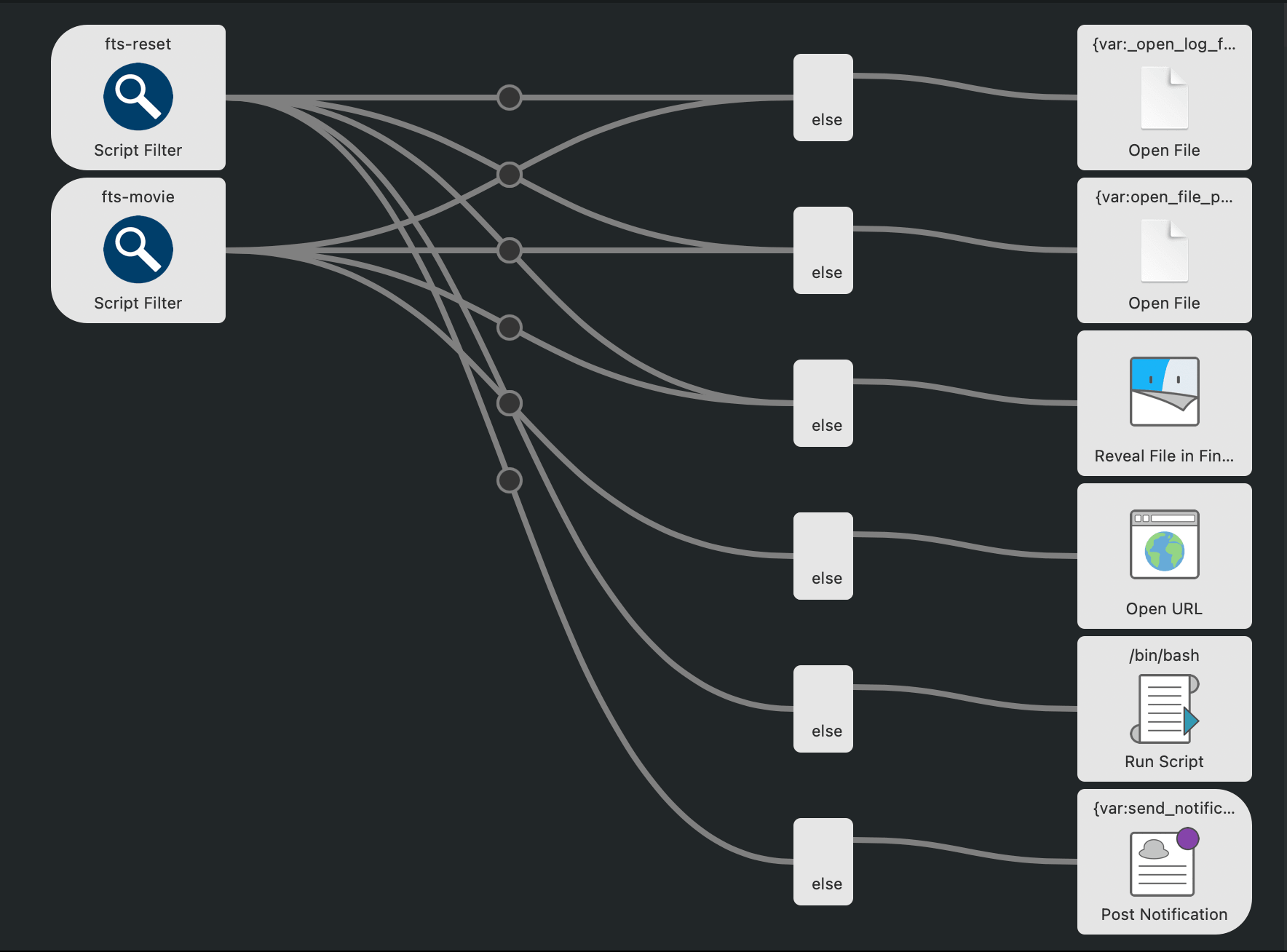
The Script Filter runs the search and produces a list of items. Each item
carries an arg value (a URL or a file path). You connect the Script Filter
to one or more Alfred actions that consume that arg.
Script Filter Configuration
Create a new blank workflow in Alfred Preferences → Workflows, add a Script Filter object, and fill in the following fields:
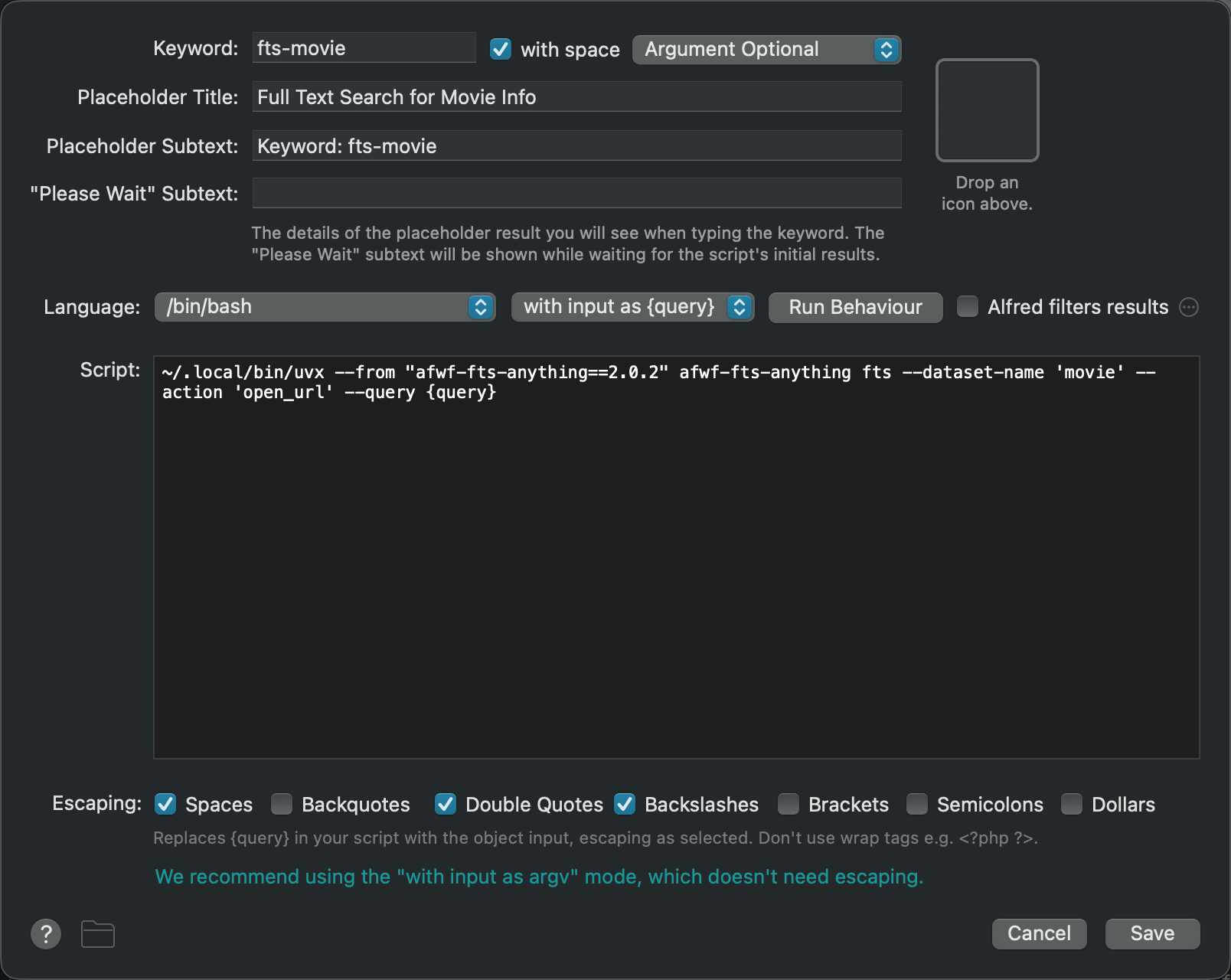
Field |
Value |
|---|---|
Language |
|
Argument |
|
Script |
See templates below |
Keyword |
Whatever trigger phrase you want (e.g. |
Search script (the main Script Filter):
~/.local/bin/uvx --from "afwf-fts-anything==2.0.2" afwf-fts-anything fts \
    --dataset-name 'movie' \
    --query '{query}' \
    --action open_url
Change --dataset-name to your dataset name, and --action to either
open_url or open_file depending on what the result’s arg contains.
Actions: open_url vs open_file
The --action flag tells the CLI what kind of value arg_field holds, so
Alfred can show the right context menu and behaviour.
open_url — arg_field is a URL. Wire the Script Filter to Alfred’s
built-in Open URL action. Pressing Enter opens the URL in the default
browser. CMD+C copies it to the clipboard.
--action open_url
Use this for: web documentation, IMDB pages, GitHub issues, AWS console
links, anything with an https:// address.
open_file — arg_field is an absolute file path. Wire the Script
Filter to Alfred’s Open File or Reveal in Finder action. Pressing
Enter opens the file in its default application.
--action open_file
Use this for: local notes, PDFs, project directories, any path on disk.
You can wire both actions in the same workflow — Alfred passes the arg to
whichever connection you configure:
Special Queries
Two query values have special behaviour regardless of the dataset:
Query |
Behaviour |
|---|---|
(empty) |
Returns all documents in the dataset, ordered by the |
|
Opens the dataset folder in Finder and reveals the setting file.
No search is performed. Handy for quick edits to |
Rebuild Index Workflow
The search index is built once and reused. When you update {name}-data.json
or pull fresh data from data_url, you need to rebuild. Add a second
workflow for this.
Option A — one dataset, manual trigger
Add a Keyword object (no argument) connected to a Run Script object:
~/.local/bin/uvx --from "afwf-fts-anything==2.0.2" afwf-fts-anything rebuild-index \
    --dataset-name 'movie'
Option B — list all datasets, pick one to rebuild
Add a Script Filter connected to a Run Script object. The Script Filter lists all datasets with fuzzy filtering:
# Script Filter
~/.local/bin/uvx --from "afwf-fts-anything==2.0.2" afwf-fts-anything list-datasets-for-reset \
    --dataset-name-query '{query}'
Selecting a dataset from the list passes its name as arg to the Run
Script, which rebuilds it:
# Run Script (receives dataset name as {query})
~/.local/bin/uvx --from "afwf-fts-anything==2.0.2" afwf-fts-anything rebuild-index \
    --dataset-name '{query}'
Upgrading the Pinned Version
The version number 2.0.1 is pinned in every Script field. To upgrade:
Find the new version on the PyPI page or GitHub Releases.
In Alfred Preferences, open each Script Filter in your workflow and replace
2.0.1with the new version number.uvxdownloads the new version automatically on the next run. No other action is required.
If you have many workflows, a quick way is to open the workflow’s
*.alfredworkflow package and do a find-and-replace on the version string
inside the Script fields.